
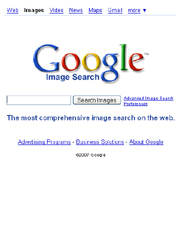
Most people know how to use Google to search for information. A lesser known feature is the ability to use the Google search engine to access an enormous collection of pictures. While Google bots are out crawling the internet to discover web pages, they also keep track of the pictures those pages contain. You can get access to that entire collection of pictures with a feature called Google Image Search.
Image Search is especially useful when you’re looking for a picture of something really specific. That makes it a great source of images for your ads. You can search the collection by keyword, and narrow down your results by image size, file type, or other parameters.
Of course the Google bots can’t actually see the pictures they are indexing (yet), but they can make a very good guess about what a picture contains by reading the file name and any other text near the image. Keep that in mind when you search for a picture – what you are really searching for are those nearby words.
Google Image Search
Here’s how it works:
- Go to www.google.com
- Click on the small link for Images.
Notice that the page title has changed to Google Image Search.
- Type some keywords for the picture you are looking for into the search box.
- Click Search Images.
The search will return many screens of small thumbnail images.
- Click on one of those thumbnail images.
You will get another thumbnail version of the picture at the top of your screen, along with some information about the website it’s on.
- Click on See full-size image.
Now you can download the picture to use in your ad or save it as your desktop background. On a Windows PC:
- Right-click on the picture
- Choose Save Image As…
- Choose a location to save the file.
- Click Save.
On a Mac just drag the picture from the web page to your desktop or folder.
Advanced Image Search
If you’re planning to use the picture for a full page print ad or your desktop background you may need it to be big enough to fill your screen. In that case, you can refine your search to return only large images:
- Click on Advanced Image Search.
- Go to the drop-down selector for Size.
- Choose Large.
- Click Google Search.
You’ll see several screens of thumbnail images for your search result again. This time they represent larger pictures, such as 1024 x 768 pixels. Follow the instructions in steps 5 though 10 above or in the How to customize your computer background article to download the picture and use it for your ad.
Related articles
- How to use Flickr to find pictures for your ads
- How to rotate picture ads with the Google Photos gadget
- Rotate your ads with a screensaver slideshow
- Supercharge your life with a New Year collage
- How to customize your computer background
- How to download and print pictures
- Advertise your way to paradise


Leave a Reply