
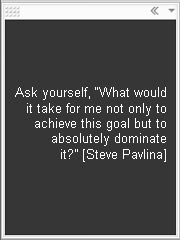
In September 2011, Google announced it would discontinue a number of its products, including Google Desktop. Although Desktop could do several cool things, TBYB! was primarily interested in the Photos gadget, which was a handy way to display a small photo slideshow in the corner of your computer’s screen while working on something else. We also used The Quote gadget, which did the same thing with text. Slideshows are one of the very best ways to advertise to yourself, so we’re sad to see Google Desktop go. Fortunately there are several other ways to automatically deliver a rotating collection of pictures or text.
Let’s wrap up the Google Gadget series for now with a gadget you can use to rotate text. This technique uses a gadget called The Quote to display one- or two-sentence ads to yourself throughout the day. The Quote is a great tool for displaying advertising concepts that are more verbal than visual. Like the Photos gadget, it lets us use the power of repetition – one of the tools advertisers use on us all the time – to magnify the effect of our messages.
The Quote gadget runs in the Google Sidebar, which is installed as part of Google Desktop. If you have not done so already, please go through the earlier articles in this series to get those components set up.
The content for the gadget is contained in a text file that contains a list of statements, separated by blank lines. The Quote gadget randomly selects one of them at a time and displays it in a box on your Google Sidebar.
Install The Quote gadget
- Go to http://benzwu.googlepages.com/.
- Click on the link for TheQuote.gg.
- A dialogue box will open asking if you want to open with Google Desktop or save to disk. Choose Open with Google Desktop.
- Click OK.
- The Google Gadget Installation box will ask you to confirm that you want to install The Quote. Click Yes.
The Quote gadget will now appear at the top of your Google Sidebar. Of course, you can adjust the size of the gadget or drag it to another location in your sidebar. See How to use Google Sidebar and Gadgets for details about using gadgets.
A list of built-in quotes will start rotating automatically, but for our purposes we want to make our own quotes list.
Make a text file
The Quote gadget reads a list of statements separated by blank lines from a plain text file. Most word processors put extra formatting information into the file along with what you write. A plain text file contains only the actual characters you type in, with no extra information.
If you’re used to using a word processor like Microsoft Word, you can create a plain text file like this:
- Drop down the File menu.
- Choose Save As.
- Navigate to the location you want to save the file.
- Fill in the File name box.
- In the Save As dialogue box, find the Save as type: input box.
- Select Plain Text (*.txt).
- Click Save.
I find it easier to use a text editor to make my plain text file, because I don’t have to remember to save the right way every time. A text editor is just a word processor that doesn’t add extra formatting junk to the file. Windows users can use the built-in Notepad or download a copy of the much better Textpad. The plain text editor on Mac is TextEdit. In TextEdit you may need to choose Plain Text from the Format menu.
Separate each statement in your document from the next with a blank line. When you have finished, save the file to your ad folder. It’s handy to keep a shortcut to the file on your desktop so you can open it again quickly.
Set the text file location
When you have finished making your text file you want to point The Quote gadget to it:
- Click the drop-down menu button (the little triangle) in the upper right corner of the The Quote gadget.
- Choose Options from that menu.
- Find the Custom quotes file input box
- Browse to the location of your text file.
- Click Open.
- Click OK.
Set the rotation speed
Finally, set the frequency that your text ads will change:
- Click the drop-down menu button (the little triangle) in the upper right corner of the The Quote gadget.
- Choose Options from that menu.
- Find the Quote change interval text input box
- Enter a time interval in seconds. I have mine set at 30 seconds right now.
- Click OK.
You can also adjust the color scheme and font if you want to.
Write some text ads
In spite of the name of the gadget, the text statements don’t have to be quotations – they can be any short statements you want to see several times a day. My current text file is a combination of affirmation-like ads I have written and statements that ARE quotes – mostly other peoples’ good ideas that I’ve encountered while reading. Each statement contains something I am inspired by, want to motivate myself with, or just want to think about again. I frequently add material while reading other blogs. When I read a line I’d like to remember I just copy it and paste it into my text file. The Quote gadget then automatically adds that idea to my ad rotation.
I discussed the steps for writing a text ad in How to write an effective ad on a Post-It note. Basically:
- State only what you DO want.
- State it in present time.
- Frame it in terms of something you really do want.
- Keep it brief and simple.
Don’t worry if you’re not able to think of many text ads right now. Once you’ve made this place for them they will occur to you. In the meantime you can get started with some great filler material, below.
Add other material to your text file
As I’ve mentioned before, I think it works well to mix your ads up with “regular programming”. The blogosphere is a rich source of lists with motivational material to include in your text file. Here are a few life hack lists I like. Please let us know about your favorite lists in the comments section.
- Oblique Strategies
- 207 great tips to make 2007 your best year ever
- 22 ways to overclock your brain
- Top 20 motivation hacks
- 52 proven stress reducers
- Be a Kid Again
Other articles in the Google Gadget series
- Widgets and gadgets and klips (oh my!)
- How to install Google Desktop
- How to use Google Sidebar and Gadgets
- How to rotate picture ads with the Google Photos gadget
- How to rotate text ads with The Quote gadget (you are here)
Leave a Reply